



Documentation

User Interface
📌 Default Interface
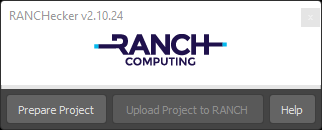
The two main buttons are:
- Prepare Project (button): Prepares the project before sending it to the farm (collects assets, the scene, and renames paths).
- Upload Project to RANCH (button): Opens the “Upload with RANCHSync” window, allowing you to upload and start rendering on the RANCH.
📜 Log Window
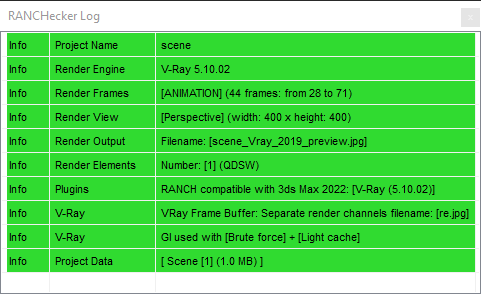
Once the project is prepared, the log window appears. This is the most important element in RANCHecker, as it displays essential information about your project’s status.
Each line (4 types) corresponds to specific information:
- 📄 Info (green): Informational message. Everything is working correctly. No action required.
- 💡 Advice (yellow): A suggestion to optimize your scene settings. This is not an error, but a recommendation to improve your project. You can ignore it if you’re confident in your settings.
- ⚠️ Warning (orange): Indicates that a change is needed in your scene or a parameter might be incorrect. Read carefully and correct if necessary.
- ❌ Error (red): Your scene contains an error or a missing option. Errors must be resolved before submitting the project. If you can’t fix it, contact us—we’ll be happy to help!
⚙️Advanced Settings
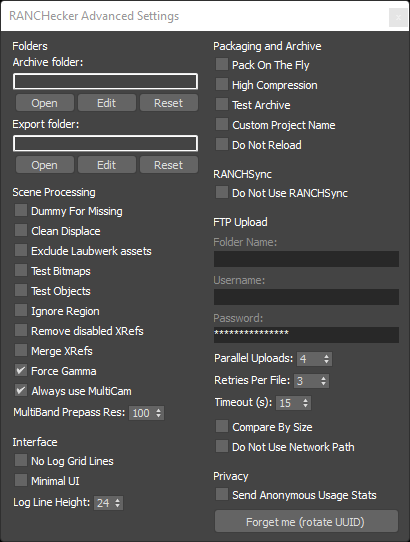
The “Advanced Settings” window opens by clicking on “Need Help?” → “Open Advanced Settings”. By default, some settings are not enabled or filled in.
Folders
- Archive folder: where RANCHecker stores project archives (Open / Edit / Reset)
- Export folder: RANCHecker-only working folder, erased on each prep (Open / Edit / Reset)
Scene Processing
- Dummy For Missing: use dummy for missing bitmap files
- Clean Displace: delete useless displace modifier (risky, may crash Max)
- Exclude Laubwerk assets: keep Laubwerk out of VU3 archive, still renders on Ranch
- Test Bitmaps: detect damaged bitmaps
- Test Objects: clean object names
- Ignore Region: disable any region render
- Remove disabled XRefs: remove disabled XRef Scene objects
- Merge XRefs: merge XRef Scene objects
- Force Gamma: workaround for 3ds Max 2025+ color management / V-Ray texture issue
- Always use MultiCam: force MultiCam instead of MultiBand (still images)
- MultiBand Prepass Res: reduce prepass resolution for MultiBand (%, 100 = no reduction)
Interface
- No Log Grid Lines: toggle grid lines in log window
- Minimal UI: hide marketing offers
- Log Line Height: line height in log window
Packaging and Archive
- Pack On The Fly: minimize files copied to export folder (3ds Max 2026+)
- High Compression: reduce project archive size
- Test Archive: test the archive
- Custom Project Name: use custom name instead of scene-based name
- Do Not Reload: skip reloading original scene after prep
RANCHSync
- Do Not Use RANCHSync: disable RANCHSync (not recommended)
FTP Upload
- Folder Name: RANCH FTP directory for your assets (max 28 chars)
- Username: FTP username
- Password: FTP password
- Parallel Uploads: max parallel FTP uploads (default 4)
- Retries Per File: upload attempts per file before fail (default 3)
- Timeout (s): FTP session timeout in seconds (default 15)
- Compare By Size: diff by file size instead of hash (hidden; huge projects only)
- Do Not Use Network Path: disable network path (hidden; not recommended)
Privacy
- Send Anonymous Usage Stats: pseudonymous telemetry, random local UUID
- Forget me (rotate UUID): send delete request, generate new local UUID
📌 Default Interface
The two main buttons are:
- Prepare Project (button): Prepares the project before sending it to the farm (collects assets, the scene, and renames paths).
- Upload Project to RANCH (button): Opens the “Upload with RANCHSync” window, allowing you to upload and start rendering on the RANCH.

📜 Log Window
Once the project is prepared, the log window appears. This is the most important element in RANCHecker, as it displays essential information about your project’s status.
Each line (4 types) corresponds to specific information:
- 📄 Info (green): Informational message. Everything is working correctly. No action required.
- 💡 Advice (yellow): A suggestion to optimize your scene settings. This is not an error, but a recommendation to improve your project. You can ignore it if you’re confident in your settings.
- ⚠️ Warning (orange): Indicates that a change is needed in your scene or a parameter might be incorrect. Read carefully and correct if necessary.
- ❌ Error (red): Your scene contains an error or a missing option. Errors must be resolved before submitting the project. If you can’t fix it, contact us—we’ll be happy to help!

⚙️Advanced Settings
The “Advanced Settings” window opens by clicking on “Need Help?” → “Open Advanced Settings”. By default, some settings are not enabled or filled in.

Folders
- Archive folder: where RANCHecker stores project archives (Open / Edit / Reset)
- Export folder: RANCHecker-only working folder, erased on each prep (Open / Edit / Reset)
Scene Processing
- Dummy For Missing: use dummy for missing bitmap files
- Clean Displace: delete useless displace modifier (risky, may crash Max)
- Exclude Laubwerk assets: keep Laubwerk out of VU3 archive, still renders on Ranch
- Test Bitmaps: detect damaged bitmaps
- Test Objects: clean object names
- Ignore Region: disable any region render
- Remove disabled XRefs: remove disabled XRef Scene objects
- Merge XRefs: merge XRef Scene objects
- Force Gamma: workaround for 3ds Max 2025+ color management / V-Ray texture issue
- Always use MultiCam: force MultiCam instead of MultiBand (still images)
- MultiBand Prepass Res: reduce prepass resolution for MultiBand (%, 100 = no reduction)
Interface
- No Log Grid Lines: toggle grid lines in log window
- Minimal UI: hide marketing offers
- Log Line Height: line height in log window
Packaging and Archive
- Pack On The Fly: minimize files copied to export folder (3ds Max 2026+)
- High Compression: reduce project archive size
- Test Archive: test the archive
- Custom Project Name: use custom name instead of scene-based name
- Do Not Reload: skip reloading original scene after prep
RANCHSync
- Do Not Use RANCHSync: disable RANCHSync (not recommended)
FTP Upload
- Folder Name: RANCH FTP directory for your assets (max 28 chars)
- Username: FTP username
- Password: FTP password
- Parallel Uploads: max parallel FTP uploads (default 4)
- Retries Per File: upload attempts per file before fail (default 3)
- Timeout (s): FTP session timeout in seconds (default 15)
- Compare By Size: diff by file size instead of hash (hidden; huge projects only)
- Do Not Use Network Path: disable network path (hidden; not recommended)
Privacy
- Send Anonymous Usage Stats: pseudonymous telemetry, random local UUID
- Forget me (rotate UUID): send delete request, generate new local UUID