ImportantRequirement: Before submitting your project, ensure your render settings are configured to output a single image. This allows RANCHecker to recognize that you intend to render a still image (not an animation).
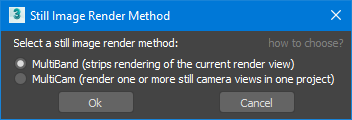
Ranch Computing offers two methods for rendering still images: MultiBand and MultiCam. Choose the best option based on your project’s needs.
🔹MultiBand (strips renderings)
What It Does
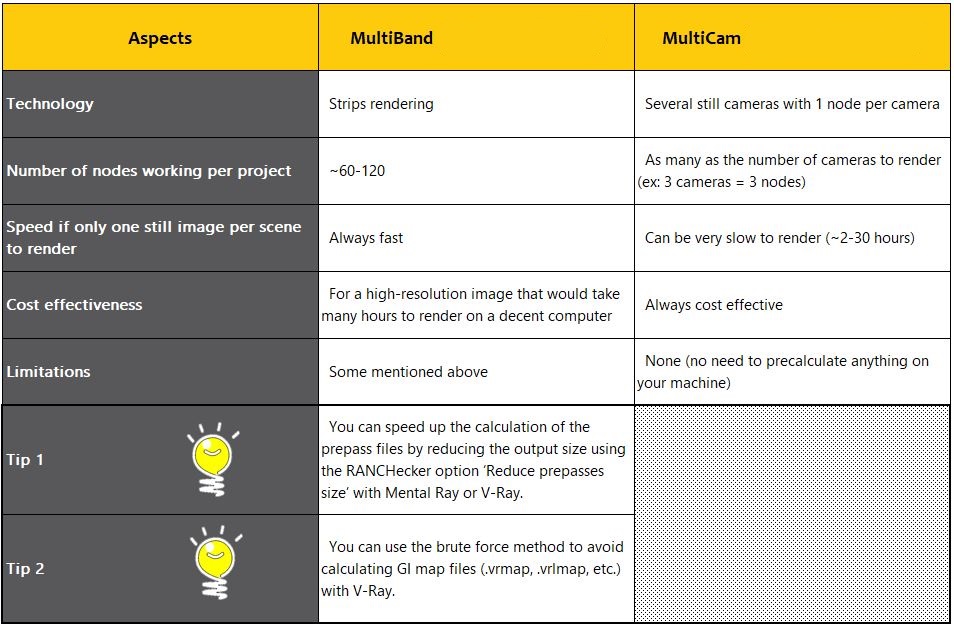
MultiBand is designed to render very high-resolution still images quickly by splitting the image into horizontal strips (~24–96 strips depending on the priority). Each strip is rendered simultaneously on different nodes, then automatically stitched together to produce the final image.
✅ Best for:
Ultra-high-resolution images (e.g., 8K, 16K).
Projects requiring fast turnaround for single frames.
❌ Limitations:
Supported Output Formats: Only 7 formats are supported:
PNG, TIF, TGA, BMP, JPG, EXR, HDR.
Note:Multi-layer TIF may only preserve the main pass. EXR is recommended for full multi-layer compatibility.
Stereoscopic Rendering:
Not supported due to command-line limitations.
2D Filters/Post-Effects:
Effects like Lens Flare are applied per strip, not the full image (may cause artifacts).
Workaround: Apply effects in post-production (e.g., Photoshop, Nuke).
Prepass Maps (GI/SSS/Caustics):
Must be pre-calculated on your local machine to avoid lighting discontinuities between strips.
Solution: Bake maps before submitting the project.
👁️Real-Time Preview:
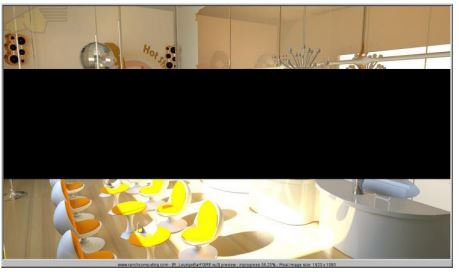
During rendering, click the Preview button to monitor progress in near real-time.
Preview updates every ~1 minute.
Above example: Preview of a still image at 56% completion.
🔹MultiCam
What It Does
MultiCam is typically used to render multiple cameras from a single scene in one project. Each camera is assigned to one server (e.g., 5 cameras = 5 servers). However, it also works for one single still image to render.
✅ Best for:
Projects with multiple camera angles.
Rendering single stills when MultiBand is unavailable.
❌ Limitations:
Website options disabled: Size, frame range, and camera settings must be defined in 3ds Max (not overrideable via the RANCH website).
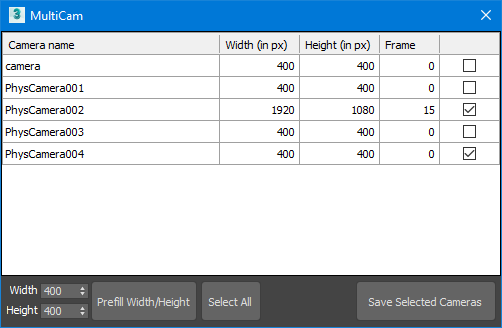
Single-camera workflow: If only one camera exists, RANCHecker auto-detects its settings (view, resolution, frame number). After clicking “Prepare Project”, a window appears to confirm/select the camera.
In MultiCam mode, website-based overrides for size, frame range, and camera settings are disabled. These parameters must be defined directly in 3ds Max.