Documentation

Troubleshooting Guide
This guide addresses common issues encountered while preparing or rendering projects with RANCHecker. Follow the steps below to resolve problems quickly.
🚀 Speed Up Project Preparation
If the RANCHecking process is slow, it may be due to the complexity of your scene. When you click “Prepare Project”, RANCHecker performs the following steps:
- Saves the original scene.
- Checks your scene, assets, and settings.
- Saves the ranchecked scene.
- Opens the project log window.
- Packs the project (creates a ZIP containing your scene, assets, and files required by the farm).
- Reloads the original scene.
How to Speed It Up
- Use XRef Files:
- XRefs reduce the size of your main scene, making it save and load faster.
- Tip: Externalize heavy assets (e.g., textures, models) as XRefs.
- Disable “Reload Original Scene”:
- In RANCHecker, enable the option “Do Not Reload” to skip reloading the original scene.
- Note: If the log contains errors, you will need to manually reload the scene to debug.
⚠️ My C:\ Drive is Full
By default, RANCHecker uses the C drive to prepare projects. If it’s full:
Solution:
- Open RANCHecker’s Advanced Settings.
- Change the archive directory and export directory to a different drive (e.g.,
D:\orE:\).
🖼️ I Have Black Rendered Frames
Possible Cause:
Your camera might be clipping through an object (e.g., a wall, pole, or geometry).
How to Fix:
- Check your camera position in 3ds Max.
- Adjust the near clipping plane or move the camera to avoid intersections.
- Render a test frame locally to confirm the issue is resolved.
📦 The VU3 Archive is Not Generated
Possible Cause:
A missing or misconfigured .NET Framework 3.5 component.
Steps to Fix:
- Open the Registry Editor:
- Press
Win + R, typeregedit, and hit Enter. - Navigate to:
HKEY_LOCAL_MACHINE\SOFTWARE\Policies\Microsoft\Windows\WindowsUpdate\AU
- Press
- Modify the Registry:
- In the right pane, if
UseWUServerexists, set its value to 0. - Close the Registry Editor.
- In the right pane, if
- Restart Windows.
- Enable .NET Framework 3.5:
- Press
Win + R, typecmd, and hit Enter. - In the Command Prompt, type
optionalfeaturesand press Enter. - In the Windows Features window, check “.NET Framework 3.5” (or similar).
- Click OK and wait for the installation to complete.
- Press
- Restart your computer and try preparing the project again.
💥 RANCHecker Has Crashed
What to Do:
- If a popup error appears during preparation, note the details.
- Open the MAXScript Listener in 3ds Max (press F11).
- Copy the full error log from the Listener window.
- Send the error log to our support team at contact@ranchcomputing.com.
- Note: We can resolve most issues within 1–3 hours during business hours.
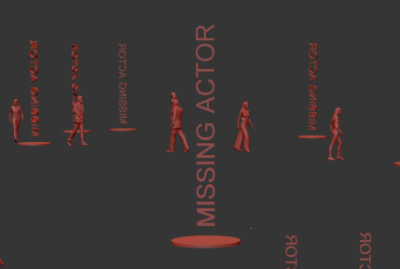
👤 I Have Missing Actors with Anima
Cause:
Anima may encounter errors when rendering on the farm due to network resource sharing issues. The AXYZ team acknowledges this and provides a warning in their documentation.
Solution:
- Follow AXYZ’s official guidelines for network rendering: Sharing Anima Resources on a Network.
- Ensure all Anima assets (e.g., characters, textures) are locally embedded or correctly referenced in your scene.
- Test the scene locally before submitting to the farm.