



Documentation

RANCHSync tool
RANCHSync is a tool developed by RANCH Computing to connect your RANCH account to your computer.
This tool has various purposes:
- Download the rendered output of a project (images, simulations, etc.) from the RANCH.
- Upload archives created by RANCHecker* to the RANCH.
*depending on the software, check the table
V4.X.X
It is the first version compatible with multiple software applications.
It exists for Windows and Mac.
For its workflow, refer to this documentation.
V5.X.X
New, more intuitive and user-friendly version, currently in Beta.
It is compatible with Windows, Mac and Linux.
Windows Installation
Run “ranchsync-5.x.x-setup.exe" and follow the on-screen instructions.
Mac Installation
Drag and drop the file into the Applications folder.
Installation Linux
It is available in 2 versions for Linux, the Debian version (.deb) and the AppImage formats.
The Debian version can be installed using a package installer like gdebi or with command line:
cd <DEB file location>
sudo dpkg -i ranchsync-5.x.x_amd64.deb
sudo apt-get -f install
Then you can run ranchsync to launch it. You can also create a shortcut for easier access.
The Appimage version requires a few steps to function properly:
1 ) Open a terminal and install the libfuse.so.2 package via terminal (or from the package manager).
sudo apt install libfuse2
2) Right-click on the RANCHSync’s AppImage file and open the properties.
In the Permissions menu/tab, check the box “Allow executing file as a program”.
3) (For Ubuntu 24.04+ only) Run the AppImage file with --no-sandbox flag:
/home/username/file_location/ranchsync-5.x.x.AppImage --no-sandbox
Earlier Ubuntu versions do not require the --no-sandbox flag and you can run the AppImage with a double-click once steps 1 and 2 are completed.
If the command is required, we recommend creating a shortcut for easier access.
Workflow
API Keys
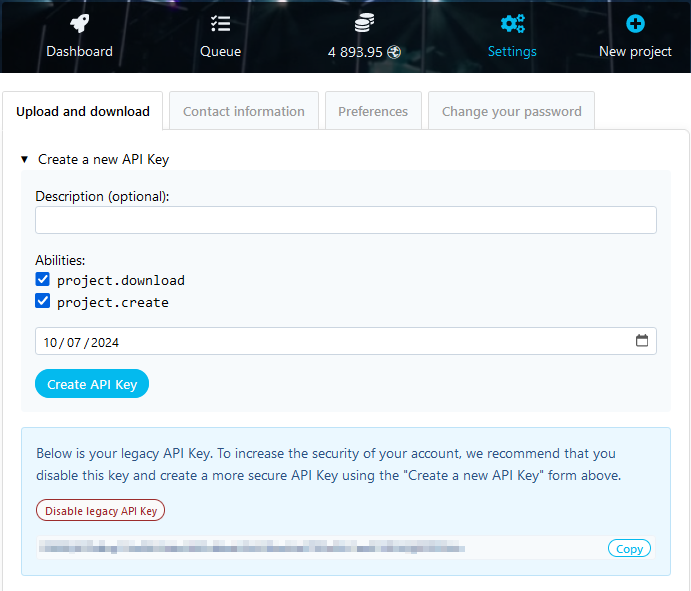
When you create an account, an API key is automatically created to link RANCHSync to your RANCH Computing account (blue-highlighted section).
This key is available in your dashboard in Settings > Upload & Download section.
If several people use this account or you wish to share your images with a third party, you can create multiple temporary API keys. These keys are time limited and can be revoked at any time.
The Permissions section let you specify whether the key can:
- project.download → Download rendered output (images, simulations etc.)
- project.create → Create and Upload new projects to the farm.
First usage
- Connect your account with the API key available in your settings (copy and paste):

Copy an existing key or generate a new one
- Choose the default directory where your rendered files will be saved. Initially, it is set to “C:\Users\username\RANCHSync_projects“
RANCHSync is a tool developed by RANCH Computing to connect your RANCH account to your computer.
This tool has various purposes:
- Download the rendered output of a project (images, simulations, etc.) from the RANCH.
- Upload archives created by RANCHecker* to the RANCH.
*depending on the software, check the table
V4.X.X
It is the first version compatible with multiple software applications.
It exists for Windows and Mac.
For its workflow, refer to this documentation.
V5.X.X
New, more intuitive and user-friendly version, currently in Beta.
It is compatible with Windows, Mac and Linux.
Windows Installation
Run “ranchsync-5.x.x-setup.exe" and follow the on-screen instructions.
Mac Installation
Drag and drop the file into the Applications folder.
Installation Linux
It is available in 2 versions for Linux, the Debian version (.deb) and the AppImage formats.
The Debian version can be installed using a package installer like gdebi or with command line:
cd <DEB file location>
sudo dpkg -i ranchsync-5.x.x_amd64.deb
sudo apt-get -f installThen you can run ranchsync to launch it. You can also create a shortcut for easier access.
The Appimage version requires a few steps to function properly:
1 ) Open a terminal and install the libfuse.so.2 package via terminal (or from the package manager).
sudo apt install libfuse22) Right-click on the RANCHSync’s AppImage file and open the properties.
In the Permissions menu/tab, check the box “Allow executing file as a program”.
3) (For Ubuntu 24.04+ only) Run the AppImage file with --no-sandbox flag:
/home/username/file_location/ranchsync-5.x.x.AppImage --no-sandboxEarlier Ubuntu versions do not require the --no-sandbox flag and you can run the AppImage with a double-click once steps 1 and 2 are completed.
If the command is required, we recommend creating a shortcut for easier access.
Workflow
API Keys
When you create an account, an API key is automatically created to link RANCHSync to your RANCH Computing account (blue-highlighted section).
This key is available in your dashboard in Settings > Upload & Download section.
If several people use this account or you wish to share your images with a third party, you can create multiple temporary API keys. These keys are time limited and can be revoked at any time.
The Permissions section let you specify whether the key can:
- project.download → Download rendered output (images, simulations etc.)
- project.create → Create and Upload new projects to the farm.
First usage
- Connect your account with the API key available in your settings (copy and paste):
- Choose the default directory where your rendered files will be saved. Initially, it is set to “C:\Users\username\RANCHSync_projects“